
Openstack: Some first steps (revisited with Opentofu)
I wrote an article regarding some initial configuration of Openstack, explaining the very firsts steps required:
 jicg
jicg
I strongly recommend reading that article in order to understand how things are done manually. I would also recommend reading the article I wrote about installing Openstack locally using Terraform/OpenTofu.
 jicg
jicg
The code for this article can be found in the repo https://github.com/jicarretero/deploy-openstack-tofu - In the directories 03-terraform-openstack-configuration-as-adminand 04-terraform-openstack-create-vm-as-user. There is a lot in the Readme.md files which can help with the previous steps.
In this article, I am going to explain now how can I configure the newly installed Openstack using OpenTofu (Terraform) and how and user can start with their first virtual server. The Openstack installation process can be found in the same repo.
As I usually type tofu or terraform randomly, I've created my alias for terraform. Yes, I know, it is clearer if I get used to type tofu, but I got tired of repeating the same wrong command once and again. So, the alias:
alias terraform=tofuI’ll follow all the steps from a newly installed and unconfigured Openstack to the deployment of a first virtual server by a non-admin user. This is the "roadmap" for this article.
- A short introduction about the Terraform Openstack Provider.
- I'll add a couple images to Glance, so I can create later new Virtual Servers.
- I'll add a few "Flavors", so I can tell my future Virtual Servers how much RAM, vCPUs and disk they can use.
- I'll create a couple of Networks, for sure my future Virtual machines will be much more interesting if they can be accessed from the they internet and they can connect to other servers.
- I'll create a new user. Yes, it is interesting doing things as an admin user, but I'd better create a new non admin user. Simply for security reasons.
- Finally, as non admin user, I'll show how to create a new Virtual Machines.
Openstack Provider for Terraform/OpenTofu
You can check the documentation for the Terraform Openstack Provider.
To configure the driver we need to define the following:
# Define required providers
terraform {
  required_version = ">= 0.14.0"
  required_providers {
    openstack = {
      source  = "terraform-provider-openstack/openstack"
      version = "~> 1.53.0"
    }
  }
}
and run
terraform initThe configuration part goes like this:
# Configure the OpenStack Provider
# Not needed if the environment variables are defined before running
# "tofu apply|destroy|state xx"
provider "openstack" {
  user_name   = "admin"
  tenant_name = "admin"
  password    = "xxxx"
  auth_url    = "http://os-admin.openstack.mine:5000/v3"
  region      = "corporario"
}
However, in Openstack, one standard way to configure all kind of clients (cli, python, this provider, etc.) is using environment variables - If we use those environment variables, we can skip that configuration for the Openstack provider.
export OS_USERNAME="admin"
export OS_PROJECT_NAME="admin"
export OS_AUTH_URL=http://os-admin.openstack.mine:5000
export OS_REGION_NAME="corporario"
export OS_PROJECT_DOMAIN_ID="default"
export OS_INTERFACE=public
export OS_IDENTITY_API_VERSION=3

# As I deployed Openstack using kolla-ansible, I can get the admin password
# from the "password.yml" file.
export OS_PASSWORD=$(awk '$1 ~ /keystone_admin_password/ {print $2}' /etc/kolla/passwords.yml)
And to load all those variables, I run it using source:
source ~/keystone-rc-admin.shAdd Images to glance
Manual Image downloads
Terraform is not designed for running local commands. We'll later need download a couple images (something like blueprint templates to create new virtual servers) and upload them to Openstack. Some of these images are compressed and we need to uncompress them before uploading them to Openstack.
So, Lets download and uncompress those images - I'll do it in my /var/lib/libvirt/base-image-pool/ directory.
cd /var/lib/libvirt/base-image-pool/

# Download cirros
wget https://download.cirros-cloud.net/0.6.3/cirros-0.6.3-x86_64-disk.img

# Download Ubuntu-noble (24.04)
wget https://cloud-images.ubuntu.com/noble/current/noble-server-cloudimg-amd64.img

# Download fedora coreos
wget https://builds.coreos.fedoraproject.org/prod/streams/stable/builds/43.20260217.3.1/x86_64/fedora-coreos-43.20260217.3.1-qemu.x86_64.qcow2.xz

# I need to descompress before uploading to Openstack.
unxz fedora-coreos-43.20260217.3.1-qemu.x86_64.qcow2.xz
We could upload the images from internet to Glance without local downloading, yes! (except for the Fedora-coreos...xz, compressed images are not supported by Glance). However, destroying and creating images would waste a bit too much bandwidth downloading once and again the same file into glance.
Upload Image to Glance
In order to upload a new image to glance, I can add the following hclcode:
# basic example - Not used later.

resource "openstack_images_image_v2" "cirros" {
  name             = "cirros"

  local_file_path  = "/var/lib/libvirt/base-image-pool/cirros-0.6.3-x86_64-disk.img"
  # alternative to local_file_path... but download from internet
  # image_source_url = "https://download.cirros-cloud.net/0.6.3/cirros-0.6.3-x86_64-disk.img"

  container_format = "bare"
  disk_format      = "qcow2"
  visibility       = "public"

  properties = {
    key = "value"
  }
}
... Three times. Or I could define a new variable with type map and iterate over the elements:
# List of images to upload -

variable "images" {
   description = "List of images to upload with some of their properties"
   type = map(object({
      # The filename to use as image.
      filename = string

      # The size of the Hard disk to use (in Gigabytes)
      hd = number

      # The amount of RAM to use (in Megabytes).
      ram = number
   }))

   default = {
      cirros = {
         filename = "/var/lib/libvirt/base-image-pool/cirros-0.6.3-x86_64-disk.img"
         hd = 1
         ram  = 512
      }
      ubuntu-2404 = {
         filename = "/var/lib/libvirt/base-image-pool/noble-server-cloudimg-amd64.img"
         hd = 10
         ram  = 2048
      }
      fedoracore-43 = {
         filename = "//var/lib/libvirt/base-image-pool/fedora-coreos-43.20260217.3.1-qemu.x86_64.qcow2"
         hd = 30
         ram  = 4096
      }
   }
}

resource "openstack_images_image_v2" "images" {
  for_each = var.images
  name             = each.key
  local_file_path  = each.value.filename
  container_format = "bare"
  disk_format      = "qcow2"
  visibility       = "public"

  /* The following are optional */
  min_disk_gb = each.value.hd
  min_ram_mb  = each.value.ram

  /* Whatever property you want to know / add (optional) */
  properties = {
    jicg = "Please visit https://jicg.eu"
  }
}
These are equivalent to Openstack command openstack image create:
# NO NEED TO RUN THIS - It is an example
# Equivalent 1 command example of the 3 VM creation above.
openstack image create "cirros-removeme" \
--file /var/lib/libvirt/base-image-pool/cirros-0.6.3-x86_64-disk.img \
--disk-format qcow2 --container-format bare \
--min-disk 10 \
--min-ram 2049 \
--property jicg='Please visit https://jicg.eu' \
--public
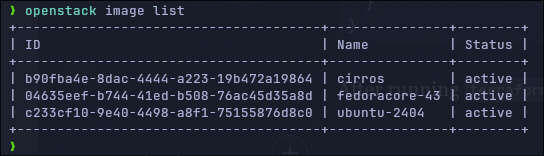
After running terraform apply, we'll have the images there:
Add Flavors
I will add 3 flavors:
- tiny — 1vCPU, 1Gb RAM, 10Gb Hd
- small — 1vCPU, 2Gb RAM, 20Gb Hd
- medium — 2vCPU, 4Gb RAM, 40Gb Hd
# List of flavors to be created
variable "flavors" {
  description = "A list of flavors to be created"
  type = map(object({
    ram   = number
    vcpus = number
    disk  = number
  }))

  default = {
    tiny = {
      ram   = 1024
      vcpus = 1
      disk  = 10
    }
    small = {
      ram   = 2048
      vcpus = 1
      disk  = 20
    }
    medium = {
      ram   = 4096
      vcpus = 2
      disk  = 40
    }
  }
}

# Create the flavors. Iterate in the flavors with the "for_each var.flavors"
resource "openstack_compute_flavor_v2" "flavors" {
  for_each = var.flavors

  name  = each.key
  ram   = each.value.ram
  vcpus = each.value.vcpus
  disk  = each.value.disk

  # Optional: public visibility
  is_public = true
}
Once defined, we can apply with tofu apply. This resources are equivalent to those created using openstack flavor create
# NO NEED TO RUN THIS - It is an example
openstack flavor create --ram 1024 \
--disk 10 --vcpus 1 --public
....
So, applying the changes:
tofu applyWe can check that Opentofu has created the flavors using openstack flavor list.

Add Networking.
As well as in the previous article, we'll create 2 types of networks:
- Internal - A local network which will be available for everybody, but it will be only used for internal communication between Virtual Servers.
- External - Connected to the internet so our local servers can reach out.
Internal network
# Create an internal Network -- A shared network for everybody
resource "openstack_networking_network_v2" "internal" {
  name           = "internal"
  admin_state_up = "true"
  shared = "true"
}

# Create a Subnetwork in our shared network
resource "openstack_networking_subnet_v2" "subnet_int_net" {
  name       = "subnet-int-net"
  network_id = openstack_networking_network_v2.internal.id
  cidr       = "192.168.192.0/24"
  ip_version = 4
  gateway_ip = "192.168.192.1"
  enable_dhcp = true
  dns_nameservers = [
        "8.8.8.8",
  ]
  allocation_pool {
        end   = "192.168.192.254"
        start = "192.168.192.3"
  }
}
Which equivalent Openstack commands are:
# DO NOT RUN THIS - It is only an example

# Create Network
openstack network create  --share ...

# One network must have at least one subnet to be usable.
openstack subnet create --network ... \
--allocation-pool start=192.168.192.3,end=192.168.192.254 \
--dns-nameserver 8.8.8.8 --gateway 192.168.192.1 --dhcp \
--subnet-range 192.168.192.0/24 ....
External network
# Create an internal Network -- A shared network for everybody
resource "openstack_networking_network_v2" "ext_net" {
  name           = "ext-net"
  admin_state_up = "true"
  external = "true"
  segments {
    network_type     = "flat"
    physical_network = "physnet1"
    segmentation_id  = 0
  }
}

# Create a Subnetwork in our shared network
resource "openstack_networking_subnet_v2" "sub_ext_net" {
  name       = "sub-ext-net"
  network_id = openstack_networking_network_v2.ext_net.id
  cidr       = "10.202.254.0/24"
  ip_version = 4
  gateway_ip = "10.202.254.1"
  enable_dhcp = true
  dns_nameservers = ["8.8.8.8"]
  allocation_pool {
        end   = "10.202.254.254"
        start = "10.202.254.16"
  }
}
And the openstack-cli equivalent would be:
# DO NOT RUN THIS - It is an example.
openstack network create --external \
--provider-network-type flat \
--provider-physical-network physnet1 ....

# Create the subnet -
openstack subnet create --network .... \
--allocation-pool start=10.202.254.16,end=10.202.254.254 \
--dns-nameserver 8.8.8.8 --gateway 10.202.254.1 \
--subnet-range 10.202.254.0/24 ....
Once defined both networks in our .tf files, we have to run the magic command again.
tofu applyAnd you will see with the command openstack network list that there are 2 new net networs (ext-net and internal) - Don't care if you see a 3rd one in the picture, at this stage we can consider it as "fully internal to Openstack".

Router Creation
Once we have the external and internal networks, let's connect both of them with one router, so the internal network can reach the Internet.
There are 2 steps here: The first one creating the router and the second one connecting the internal network to the router:
# Create a router with the gateway placed in the external network.
resource "openstack_networking_router_v2" "rt_ext" {
  name = "rt-ext"
  external_network_id = openstack_networking_network_v2.ext_net.id
}

# Router interface to subnet
resource "openstack_networking_router_interface_v2" "rt_ext_interface" {
  router_id = openstack_networking_router_v2.rt_ext.id
  subnet_id = openstack_networking_subnet_v2.subnet_int_net.id
}
The equivalent commands in Openstack-CLI are:
# DO NOT RUN THIS - It is only an equivalent example
# Create a router named rt-ext
openstack router create --centralized ...

# Set the external gateway (gateway to the Internet) in the external netw
openstack router set ... --external-gateway  extenal-network

# Add the subnet (the internal one)
openstack router add subnet routert-external subnetwork-internal
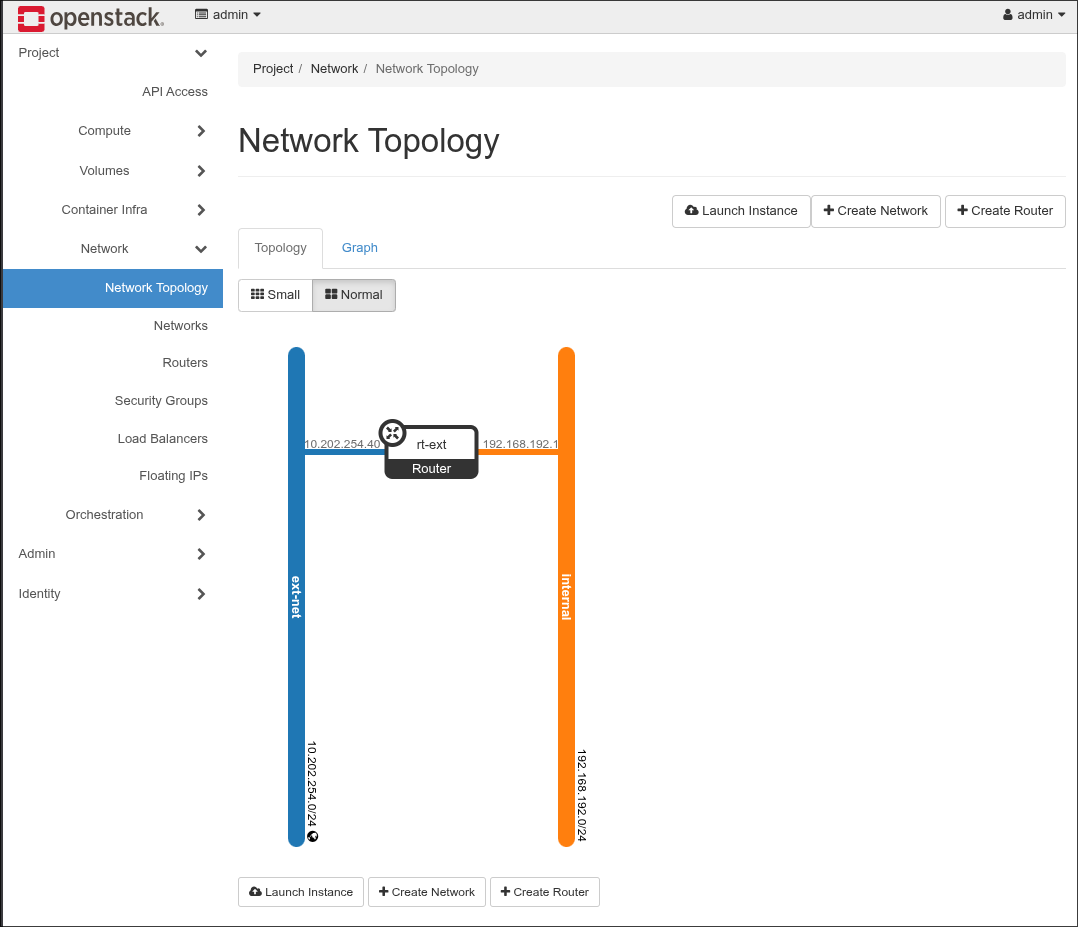
And I have a router connected to both networks, ext-net and internal. I can get a visual representation of that in Openstack dashboard (with the user admin):
Create User and Project
A last step is to create a non admin user, with its project and add it to the "member" group. The member role is already created by Openstack in the installation process. We should assign the role "member" to the newly created user in the newly created project.
In order to get the data from the member role (what Openstack knows about it), we define the data block
data "openstack_identity_role_v3" "member" {
    name = "member"
}

# Use later with openstack_identity_role_v3.member_id
Here it is the full creation of the user, the project and the role assignment - I've set the user_name, the project_name and the user_password as variables. You can override them using environment variables TF_VAR_user_password, TF_VAR_project_name and TF_VAR_user_name.
# Set variables
variable "user_password" {
  description = "Password of the user user"
  type        = string
  sensitive   = true

  # Remove the following line and
  # 'export TF_VAR_user_password="mysecretpassword"' instead
  default = "mysecretpassword"
}

variable "project_name" {
  type = string
  default = "jicg-project"
}

variable "user_name" {
  type = string
  default = "jicg"
}


# openstack pproject create --domain default user_project
resource "openstack_identity_project_v3" "user_project" {
  name        = var.project_name
  description = "A new user project"
}

# openstack user create --password misecretpassword user
resource "openstack_identity_user_v3" "user" {
  default_project_id = openstack_identity_project_v3.user_project.id
  name               = var.user_name
  description        = "A non admin user to deploy things"

  password = var.user_password
}

# Query the role "member" - So I can access it using
# data.openstack_identity_role_v3.member...
# Openstack cli, this hcl snippet would translate to:
#     openstack role show member
data "openstack_identity_role_v3" "member" {
    name = "member"
}

# Openstack role assignment list
resource "openstack_identity_role_assignment_v3" "role_assignment_1" {
  user_id    = openstack_identity_user_v3.user.id
  project_id = openstack_identity_project_v3.user_project.id
  role_id    = data.openstack_identity_role_v3.member.id
}
This basically does what openstack cli would do if you run the following commands:
# DO NOT RUN THIS - It is an example

openstack project create --domain default jicg_project

openstack user create --password mysecretpassword jicg

openstack role add --user jicg --project jicg_project member
Create a new VM as non-admin user
Until new, we've simply configured openstack to be usable. And we created a new user. We'll use the configuration variables to run everything. Please, change with your values:
export OS_REGION_NAME="corporario"
export OS_USERNAME='jicg'
export OS_PASSWORD=mysecretpassword
export OS_AUTH_URL=http://os-admin.openstack.mine:5000/v3
export OS_PROJECT_NAME=jicg-project

export OS_PROJECT_DOMAIN_ID=default
export OS_USER_DOMAIN_ID=default
export OS_IDENTITY_API_VERSION=3
In order to configure a Virtual Machine in Openstack we need to
- Create a keypair (to ssh to our virtual server).
- Create at least one security group with its security rules, because by default, Openstack behaves like a fully closed firewall. We need to open ports
- Add a floating IP to the VM, so we can access the VM from outside of the Openstack deployment.
Create a keypair
This is the minimal way to create a private key, however there is a big issue with it: The private key will be in the file terraform.tfstate.
# Not the recommended way

# The private key will be stored in terraform.state
resource "openstack_compute_keypair_v2" "test_keypair" {
     name = "test_keypair"
}
If you are curious, in this case, we could extract the private key using jq:
jq -r ".resources[]|select(.name==\"test_keypair\").instances[].attributes.private_key" terraform.tfstateLet's be serious – That's not a good idea nor a good practice. It is better to use a local private key generated using ssh-keygen. I will use my ed25519 public key in this case:
locals {
  // I will use my id_ed25519.pub file. I will load it from the file
  ssh_public_key = file(pathexpand("~/.ssh/id_ed25519.pub"))
}

resource "openstack_compute_keypair_v2" "jicg_keypair" {
     name = "jicg_keypair"
     public_key = local.ssh_public_key
}
We can create many keypairs, but it could suffice with only one for all of our servers.
Set up (one) security group and its rules
Security Groups consist of a set of firewall rules to allow some IPs (or all) to access some ports in our server using TCP or UDP, or allow connecting with the host using ICMP – ping
The basic ingress rules for TCP would allow port 22 (ssh), 80 (http), 443 (https) from everywhere 0.0.0.0/0
resource "openstack_networking_secgroup_v2" "basic_secgroup" {
    name = "basic_secgroup"
    description = "A basic secgroup for a demo"
}
Once we have the security group defined, we need to define some rules:
resource "openstack_networking_secgroup_v2" "secgroup_1" {
  name        = "secgroup_1"
  description = "A first example of security group"
}

resource "openstack_networking_secgroup_rule_v2" "secgroup_rules_1" {
  for_each          = var.open_ports
  direction         = "ingress"
  ethertype         = "IPv4"
  protocol          = each.value.protocol
  port_range_min    = each.value.port_range_min
  port_range_max    = each.value.port_range_max
  remote_ip_prefix  = each.value.remote_ip_prefix
  security_group_id = openstack_networking_secgroup_v2.secgroup_1.id
}
The open_ports variable is defined to open 3 tcp ports, one udp and one icmp (for ping):
variable "open_ports" {
  description = "List of open ports that I will add the security group"
  type = map(object({
    protocol         = string
    port_range_min   = number
    port_range_max   = number
    remote_ip_prefix = string
  }))

  default = {
    ssh = {
      protocol         = "tcp"
      port_range_min   = 22
      port_range_max   = 22
      remote_ip_prefix = "0.0.0.0/0"
    }
    http = {
      protocol         = "tcp"
      port_range_min   = 80
      port_range_max   = 80
      remote_ip_prefix = "0.0.0.0/0"
    }
    https = {
      protocol         = "tcp"
      port_range_min   = 443
      port_range_max   = 443
      remote_ip_prefix = "0.0.0.0/0"
    }
    openvpn = {
      protocol         = "udp"
      port_range_min   = 1194
      port_range_max   = 1194
      remote_ip_prefix = "0.0.0.0/0"
    }
    ping = {
      protocol         = "icmp"
      port_range_min   = 0
      port_range_max   = 0
      remote_ip_prefix = "0.0.0.0/0"
    }
  }
}
If we query the security rules from our security group:
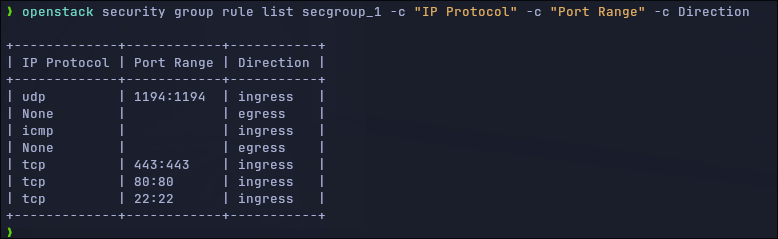
We can see a couple of egress rules – These rules are defined by default by Openstack, and they are not managed by Terraform. They are there for the incoming traffic, but if we want to manage with Terraform everything, we could insert the following line to the creation of the security group:
delete_default_rules = trueAnd we’ll need to create the outgoing traffic rules (egress rules) with Terraform. I really don’t care about them.
A last note about creating Security rules: This is the firewall for your Virtual Server (servers), so you should pay close attention to the rules you define and open only what you need — Rules like “open TCP for 0.0.0.0/0 from port 1 to 65535” are rubbish.
Create a floating IP
The floating ips are public IPs, by default (in my configuration at least) all virtual servers will be assigned a IP in a local network not accessible from outside Openstack. This is the reason why we assign a floating ip (public IP) to our server, to access it from outside the Openstack installation.
The only thing we need to do is applying this one.
variable "network_pool" {
    type = string
    default = "ext-net"
}

resource "openstack_networking_floatingip_v2" "floatip_1" {
  pool = var.network_pool
}
New server: An Ubuntu in this case.
We'll run a new server with:
- Network
internal- A public resource our admin defined above. - Our security group
secgroup_1 - Our keypair
- The small flavor (2 vCPUs, 20Gb HD, 2GB RAM)
So, the very basic configuration here is:
resource "openstack_compute_instance_v2" "first_ubuntu" {
  name            = "first_ubuntu"
  image_name      = var.image
  flavor_name     = var.flavor
  key_pair        = "demo_keypair"
  security_groups = ["secgroup_1"]

  network {
    name = var.public_network
  }
}

## Here we get information about the port related with our network
data "openstack_networking_port_v2" "first_ubuntu_port" {
    device_id = openstack_compute_instance_v2.first_ubuntu.id
    network_id = openstack_compute_instance_v2.first_ubuntu.network.0.uuid
}

## And associate the port (data above) with the floating ip we created
## previously
resource "openstack_networking_floatingip_associate_v2" "fip_vm" {
  floating_ip = openstack_networking_floatingip_v2.floatip_1.address
  port_id     = data.openstack_networking_port_v2.first_ubuntu_port.id
}
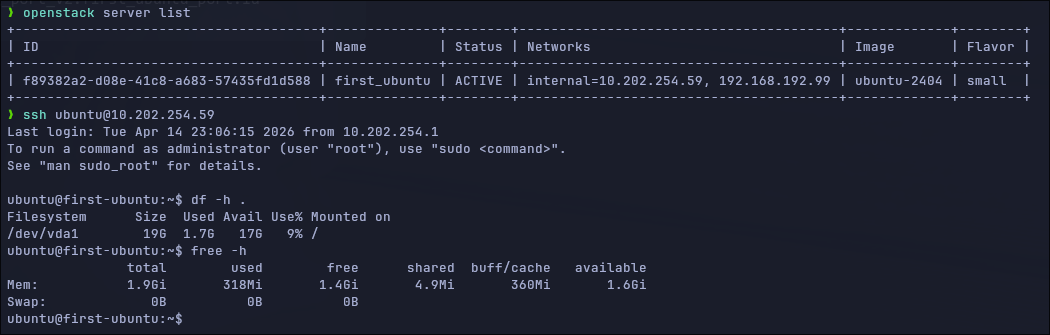
After applying this we can see that our server has a public IP and we can check that the server is there using openstack server list and we can ssh to the virtual server.
Thank you for reading.